
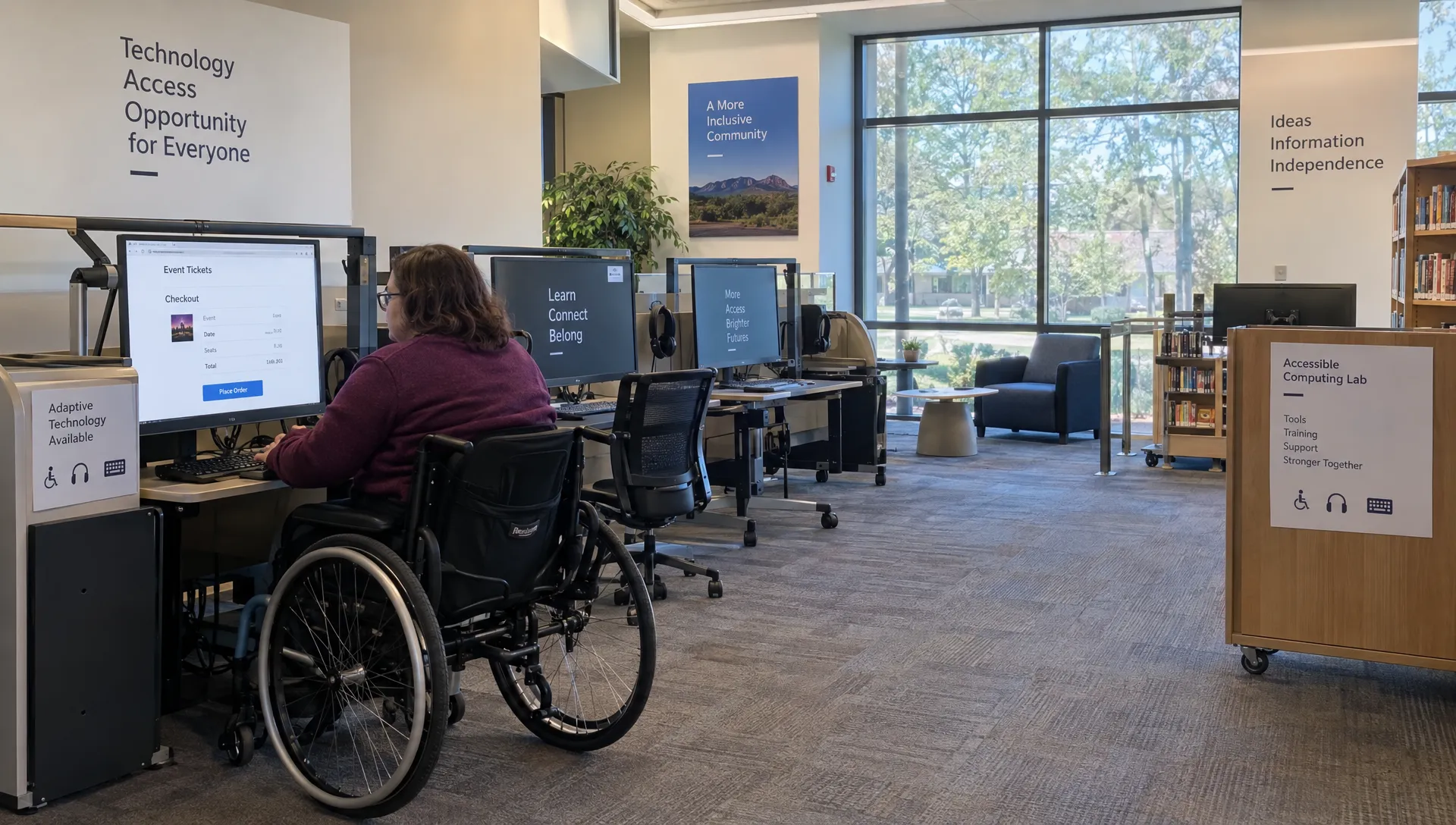
Help Attendees Purchase Event Tickets With Accessible Checkout
When attendees purchase event tickets, checkout should work whether they use a mouse, keyboard, screen reader or voice controls. Small barriers, such as an unlabeled email field or a payment dialog that traps focus, can prevent someone from completing an otherwise straightforward order.
For organizers, accessible checkout means more than shortening the form. It means making ticket choices understandable, controls usable and payment outcomes clear. The practical goal is simple: attendees should be able to buy independently, recover from mistakes and receive confirmation without having to contact your team.
Set an accessibility standard before configuring checkout
Use WCAG 2.2 Level AA as a design and testing baseline. Its requirements address issues including keyboard access, contrast, form instructions and accessible authentication. Legal obligations vary by location, so treat this as an implementation standard rather than a blanket statement of legal compliance.
Evaluate the complete purchase journey, not just the event page. Ticket selectors, embedded payment fields, authentication screens and confirmation messages can each introduce barriers. A checkout that looks accessible at the start may still fail when someone submits an invalid card or opens a payment challenge.
People should be able to purchase event tickets through the same core flow, without a separate, less convenient process for disabled attendees. Support provides a fallback, but it should not replace fixing an inaccessible form.
Before launch, assign someone to own accessibility issues and confirm which problems your ticketing provider can resolve. Keep a record of the devices, browsers and assistive technologies used during testing, along with unresolved defects.
Explain ticket choices before asking for details
Accessible checkout begins with understandable information. Give every ticket option a descriptive name and explain what admission includes. “Saturday evening admission, doors at 7 p.m.” communicates more than “Tier B.”
Keep dates, venue information, age restrictions and access conditions close to the relevant choice. If multiple sessions have similar names, distinguish them in text rather than relying on colored cards. Present prices and mandatory charges clearly before attendees commit to payment.
For educational events, separate admission from learning resources and exam fees. If you recommend certification study guides and practice questions alongside a technical workshop, state whether those resources are optional and separate from the ticket. Attendees should not have to guess whether admission includes an exam voucher or third-party study materials.
Describe venue accessibility without making buyers disclose a diagnosis. Provide a way to ask about step-free access, seating or interpretation before payment. Any optional accommodation request should explain why you need the information and who will receive it.
Clear descriptions help buyers decide whether the event meets their needs before they invest time in checkout.
Let attendees purchase event tickets using a keyboard
Every essential action should work without a mouse: choosing a ticket, adjusting quantities, applying a promo code, accepting terms and submitting payment.
Press Tab through the checkout and watch where focus moves. The sequence should follow the page’s reading order, with a visible indicator showing the active control. Sticky banners, cookie notices and payment overlays must not hide that indicator or block the next action.
Use standard buttons and form controls wherever possible. Custom quantity selectors and clickable cards need particular attention because visual styling does not automatically give them keyboard behavior or meaningful names for assistive technology.
Check dialogs separately. When a payment or terms dialog opens, focus should move inside it. When it closes, focus should return to a sensible place. Users must be able to exit without becoming trapped.
Visible labels should also match the names exposed to assistive technology. Someone using voice control needs to be able to say the words they see, such as “Continue to payment,” and activate the correct button.
Make forms readable and errors recoverable
Give each field a persistent label. Placeholder text disappears as someone types and should not be the only explanation of what belongs in a field. Mark required fields in words or explain any symbol consistently.
Ask only for information needed to complete the order. If one person is buying several tickets, distinguish purchaser details from attendee details and explain which can be supplied later, if your process allows that.
Attendees trying to purchase event tickets should not lose their progress because they mistyped an email address. Keep valid entries after an error and provide a specific correction, such as “Enter an email address that includes @,” rather than “Invalid input.” Never include sensitive payment details in error messages or logs.
The W3C forms guidance explains how labels, instructions and feedback support accessible forms. Ask your provider how errors are associated with their fields and announced to screen readers. A red border alone is insufficient.
Check readability too. WCAG AA requires at least 4.5:1 contrast for most text, with a 3:1 threshold for qualifying large text. Text must remain usable when enlarged. Avoid hiding instructions in tiny footnotes or using color as the only signal for required fields, availability or payment status.
Keep payment, authentication and timers usable
Payment is a separate accessibility checkpoint, even when another company supplies the payment fields. Test card entry, payment challenges and the return to checkout after authentication. Confirm that field labels, errors and completion messages remain understandable throughout.
People may need extra time to purchase event tickets because they navigate sequentially, magnify text or use assistive technology. Remove unnecessary session limits. If inventory reservations require a timer, make the remaining time perceivable and explain what happens when it expires.
Where applicable, provide advance warning and a way to extend the session. WCAG includes specific timing requirements and exceptions, so have your implementation reviewed rather than assuming every inventory timer is exempt. Preserve non-sensitive information where practical and make expired reservations easy to restart.
Avoid inaccessible CAPTCHA challenges. If bot protection presents a challenge, verify that an accessible alternative exists. Authentication should also support tools such as password managers and pasted codes rather than imposing avoidable memory or transcription tasks.
Finally, distinguish processing from failure. After someone activates the payment button, communicate that the order is being processed. If the outcome is uncertain, provide a way to check the order before encouraging another payment attempt.
Test the complete purchase journey before launch
Run realistic tasks rather than reviewing screenshots alone. Ask testers to purchase event tickets from the published event page, make a deliberate mistake and recover. Include a sold-out option, a promo-code error and an unsuccessful payment attempt in a safe test environment.
Automated accessibility checks can identify some problems, but they cannot establish whether the whole journey is usable. Combine them with manual checks and, where possible, testing by people who use assistive technology.
| Test | What to verify |
|---|---|
| Keyboard only | All controls work, focus stays visible and no component traps the user |
| Screen reader | Ticket names, prices, labels, errors and status changes are understandable |
| Enlarged text and zoom | Content remains readable without overlapping controls or hidden instructions |
| Narrow viewport | Checkout reflows without unnecessary horizontal scrolling |
| Touch input | Controls have enough space and do not depend on hovering |
| Error recovery | Valid information remains available and corrections are clearly explained |
Test at 200% text enlargement and check reflow at a width equivalent to 320 CSS pixels. Inspect the payment step as carefully as the event page, especially when embedded content comes from another provider.
For touch controls, WCAG 2.2 AA generally sets a 24-by-24 CSS pixel minimum target size, subject to exceptions. Larger targets, such as 44-by-44 CSS pixels, are a useful design goal for primary actions. Do not treat size alone as proof of accessibility.
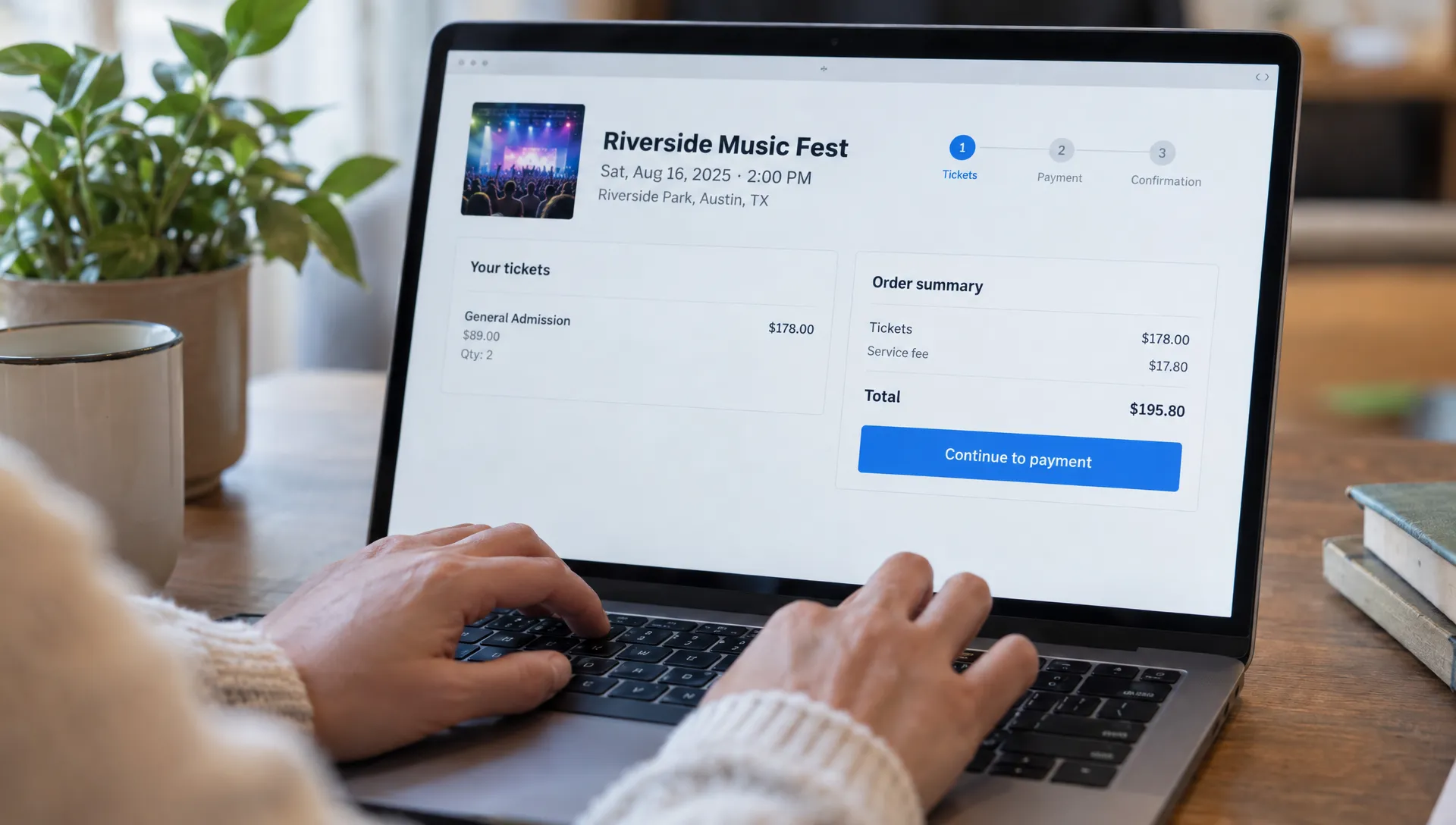
Make confirmation and ticket retrieval accessible
A successful card charge is not the end of checkout. Attendees need to know that the order succeeded, what they bought and how to retrieve their tickets.
Provide a clear confirmation heading, an order reference and the delivery destination. Make order details available as text rather than placing essential information only inside an image. Email confirmations should use descriptive links and readable formatting.
If attendees receive a PDF or mobile ticket, check that essential details are available accessibly. A QR code should not be the only way to identify an order. Include a readable ticket reference and explain the available help process if a device fails or the ticket cannot be displayed.
Someone who can purchase event tickets independently should also be able to retrieve them without unexpected account creation. State any retrieval requirements before payment and offer a straightforward route for correcting a delivery problem.
Keep venue access instructions easy to find in the confirmation. Buyers should not have to repeat an accommodation request simply because checkout and event operations use different systems.
Give your team a clear support and repair process
Publish a contact method near checkout for people who encounter a barrier. Explain what information helps your team investigate, such as the affected step, browser and error message. Do not ask attendees to email card details or disclose medical information.
Offer more than a phone-only route where practical. An accessible written channel can help attendees who cannot use voice calls, while another contact option may help people who cannot complete the online form.
If staff assist with an order, use an approved payment process. Never improvise by collecting card information in ordinary email or chat.
Track accessibility problems separately from general feedback so repeated failures are not buried. Fix blockers that prevent ticket selection, payment or confirmation first. Then retest the affected journey, including any third-party component involved, rather than closing the issue based only on a visual change.
Frequently asked questions
Does guest checkout make ticket buying accessible? It removes the account-creation step, but accessibility still depends on usable controls, clear labels, understandable errors and accessible payment. Attendees may be able to purchase event tickets without registering and still encounter a barrier later. Removing registration is one improvement, not proof that the entire flow works.
Can an automated checker confirm WCAG compliance? No. Automated tools can detect some issues, including certain missing labels and contrast failures. They cannot fully judge keyboard behavior, meaningful instructions or whether a person can complete a purchase. Manual testing and assistive-technology testing remain necessary.
What should organizers ask a ticketing provider? Ask for current accessibility documentation, the scope and date of testing, known limitations and the process for reporting defects. Confirm whether the assessment includes payment authentication, error states and ticket delivery, not just the public event page. Request evidence rather than relying on a general accessibility claim.
Is a support phone number enough if checkout has barriers? A phone number is useful support, but it does not make an inaccessible checkout accessible. Calling may be unavailable or unsuitable for some attendees. Address the underlying barrier and provide practical alternatives while the repair is underway.
Build a lower-friction checkout, then verify accessibility
TixFlow offers no buyer registration and a customizable checkout experience. Removing a mandatory account step can help attendees purchase event tickets with fewer requirements; its effect is explored further in this guide to guest checkout for ticket sales.
Those features are a starting point, not a substitute for accessibility testing. Review your configured event page, payment flow and confirmation against the checks above. Explore TixFlow for your event setup, then verify that attendees can complete the whole journey with the tools they actually use.